

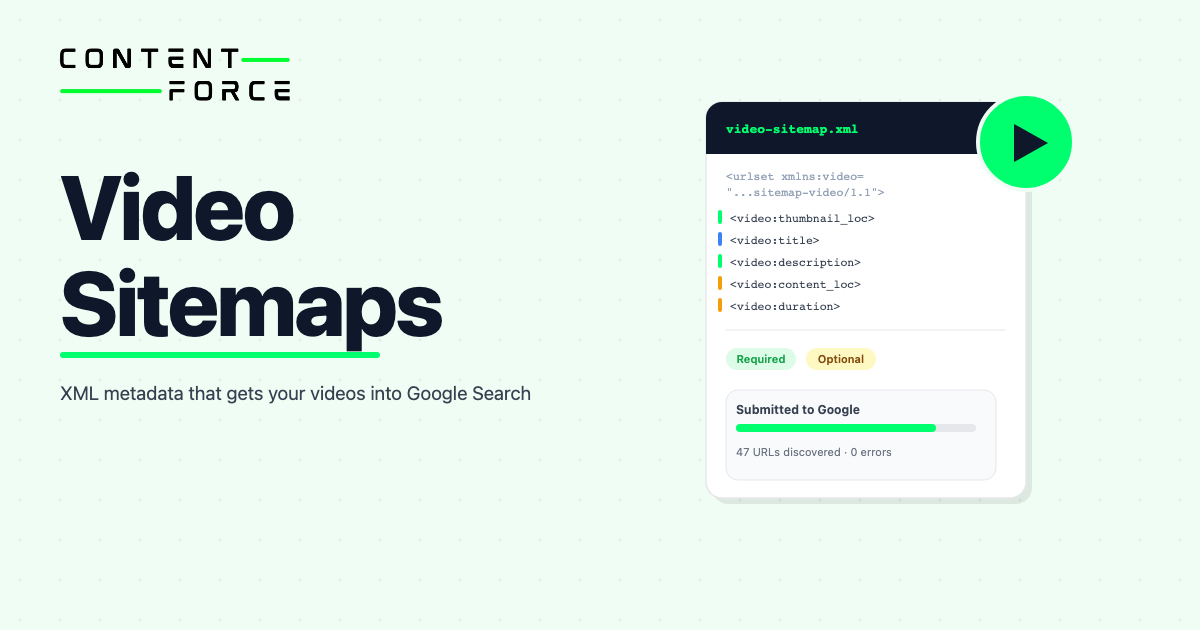
A video sitemap is an XML file that tells search engines about the videos on your site. It provides metadata like title, description, duration, thumbnail URL, and the location of each video file: information that helps Google discover and index your videos, especially newly published content or videos embedded via JavaScript that crawlers might not find through regular page links alone.
If you host video on your website, a video sitemap is one of the most direct ways to get that content into Google Search and the Google Video tab. Submit it through Google Search Console and Google starts processing your video library right away.
What Is a Video Sitemap?
A video sitemap is an XML file that tells search engines about the videos on your site, including title, description, duration, thumbnail URL, and video location. It helps search engines discover, index, and display your video content in results, especially recently added videos or content loaded dynamically.
Think of it as a structured inventory of your video library. Instead of waiting for Googlebot to stumble across an embedded player, creating a video sitemap hands Google the metadata it needs to understand, categorize, and rank each video.
Video sitemaps follow the same base format as standard XML sitemaps but add a set of video-specific tags under a dedicated namespace. You can create a separate video sitemap or add video tags to an existing sitemap, whichever fits your setup.
Why Video Sitemaps Matter for SEO
Around 47% of desktop search results include at least one video. That reach extends beyond web results: video sitemaps improve your chances of appearing in rich results, video carousels, and the dedicated Google Video tab.
Three practical benefits make a video sitemap worth implementing:
- Faster, more accurate indexing. While Googlebot can crawl text, video sitemaps provide explicit information about video locations, thumbnails, and descriptions that might otherwise be missed or improperly indexed.
- Rich results visibility. Proper video sitemaps increase the likelihood of your video appearing with a thumbnail in Google search results, including video carousels and the Google Images tab.
- Essential for large or dynamic sites. For websites that produce high volumes of video or use dynamic loading (like JavaScript), a sitemap acts as a direct notification system to Google of new or updated content.
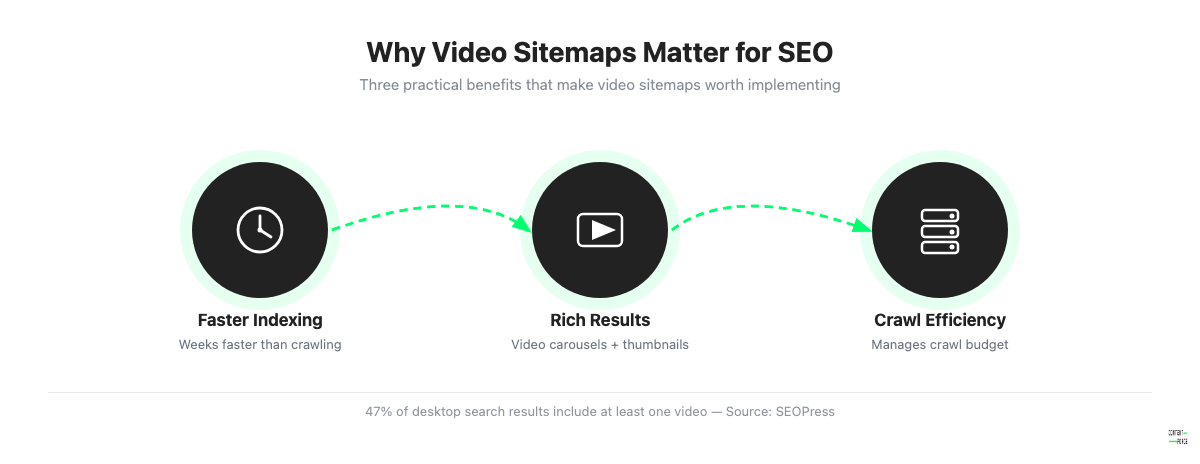
Without a sitemap, Google has to find your videos through regular crawling. For new or recently updated videos, that can take weeks. A video sitemap shortens that window and ensures the metadata Google reads matches what you actually want it to index.
For sites with large video libraries, a sitemap also helps manage crawl budget. Google can prioritize video pages it has not indexed yet instead of recrawling pages it already knows.
Video Sitemap vs Standard XML Sitemap
A standard XML sitemap lists page URLs so search engines know what content exists on your site. A video sitemap extends that with video-specific metadata fields (thumbnail, duration, content URL, and more) so search engines can surface your videos in video search results and rich results, not just web results.
| Feature | Standard XML Sitemap | Video Sitemap |
|---|---|---|
| Purpose | List crawlable page URLs | Provide video metadata for indexing |
| Extra fields | None | thumbnail, title, description, duration, content URL |
| Namespace required | No | Yes (xmlns:video=”http://www.google.com/schemas/sitemap-video/1.1″) |
| Target results | Web search results | Web results + video carousels + Google Video tab |
You can combine both in one file by adding video tags inside existing url blocks. Just make sure to declare the video namespace at the top of the file.
Required and Optional Video Sitemap Tags
According to the Google Developers video sitemap reference, five elements are required inside each video:video block. The video:video element wraps all of these and sits inside the standard url block. Without these required tags, Google will not index the video.
Required tags
| Tag | Description | Constraints |
|---|---|---|
| video:thumbnail_loc | URL to the video thumbnail image | Must be accessible to Googlebot |
| video:title | Title of the video | HTML entities must be escaped or wrapped in CDATA |
| video:description | Description of the video | Maximum 2,048 characters |
| video:content_loc | Direct URL to the video file | HTTP or FTP only; not blocked by robots.txt |
| video:player_loc | URL to the video player page | Required if video:content_loc is absent; at least one is mandatory |
Recommended optional tags
Optional tags are not required, but they give search engines more context and improve how your videos appear in results.
| Tag | Description | Constraints |
|---|---|---|
| video:duration | Length of the video in seconds | 1 to 28,800 seconds |
| video:expiration_date | Date the video expires | W3C format (YYYY-MM-DD) |
| video:rating | Video rating | 0.0 to 5.0 |
| video:view_count | Number of views | Integer |
| video:publication_date | Publication date | W3C format |
| video:family_friendly | Whether content is family-safe | yes or no |
| video:restriction | Geographic or platform restriction | ISO 3166 country codes |
| video:tag | Descriptive tags for the video | Maximum 32 tags per video |
| video:live | Whether this is a live stream | yes or no |
Deprecated tags
These tags were removed from the video sitemap specification and should not be used:
- video:category
- video:gallery_loc
- video:price
- video:tvshow
- player_loc attributes: autoplay and allow_embed
How to Create a Video Sitemap
Manual XML creation
Start with a plain XML file. Declare the standard sitemap namespace and the Google video namespace, then add a url block for each page that contains a video.
Here’s a minimal working example:
“xml <?xml version="1.0" encoding="UTF-8"?> <urlset xmlns="http://www.sitemaps.org/schemas/sitemap/0.9" xmlns:video="http://www.google.com/schemas/sitemap-video/1.1"> <url> <loc>https://example.com/page-with-video/</loc> <video:video> <video:thumbnail_loc>https://example.com/thumbnails/video1.jpg</video:thumbnail_loc> <video:title>How to Use Example Product</video:title> <video:description>A walkthrough of the main features of Example Product.</video:description> <video:content_loc>https://example.com/videos/video1.mp4</video:content_loc> <video:duration>180</video:duration> </video:video> </url> </urlset> “
Each url block represents one page. If a page has multiple videos, add multiple video:video blocks inside the same url element.
Keep the file under 50,000 URL entries and under 50MB. If your library is larger, split it into multiple sitemap files and reference them from a sitemap index file.
Using an online sitemap generator
If you do not want to write XML manually, tools like XML-sitemaps.com or Screaming Frog can generate video sitemaps from a list of URLs or by crawling your site. You will still need to add video-specific metadata (thumbnail, description, content URL) manually for each entry in most cases.
Submitting your video sitemap to Google
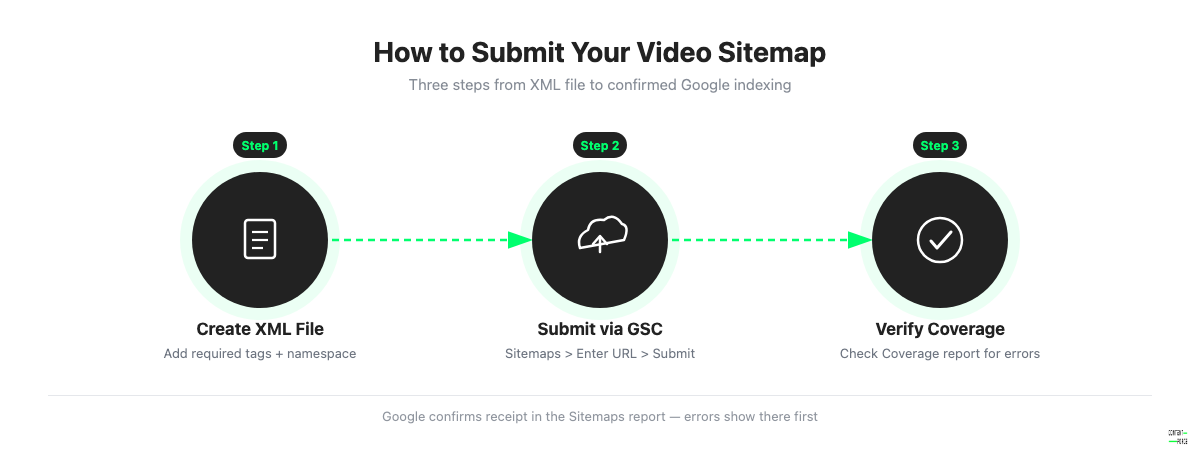
Once the file is ready, submit it through Google Search Console:
1. Open Google Search Console and select your property. 2. Go to Sitemaps in the left menu. 3. Enter the URL of your sitemap file and click Submit.
Google will confirm receipt and start processing. You will see status updates in the Sitemaps report, including whether the file was indexed successfully or returned errors.
How to Create a Video Sitemap in WordPress
In WordPress, the easiest path is through your existing SEO plugin. The three most common options, Yoast SEO, RankMath, and SEOPress PRO, all support video sitemaps natively.
Yoast SEO
Yoast SEO Premium includes a video SEO module. After installing the Video SEO add-on, go to SEO > Features and enable the video sitemap. Yoast generates the sitemap automatically and adds video metadata for pages where it detects an embedded video.
RankMath
RankMath Pro supports video sitemaps through its sitemap module. In the RankMath dashboard, go to Sitemap > Video Sitemap and enable it. RankMath scans your posts for embedded video and populates the sitemap entries automatically. You can also add metadata manually per post in the RankMath SEO panel.
SEOPress PRO
SEOPress PRO generates a video sitemap at yourdomain.com/video1.xml once enabled. Go to SEO > XML/HTML Sitemap, check Enable XML Video Sitemaps, and save. For each post, add video metadata in the SEO metabox under the Video Sitemap tab.
From version 5.7 onward, SEOPress automatically detects embedded YouTube videos and pulls the title, description, and thumbnail without manual input. This makes it the most hands-off option for WordPress sites that primarily use YouTube embeds.
Video Sitemap Best Practices
Following Google’s guidelines on format and content quality makes a meaningful difference in how well your video sitemap performs. A technical SEO audit is the right place to catch issues like blocked URLs or missing tags before they affect indexing.
- Thumbnails: Use a 1280×720 pixel image at a 16:9 aspect ratio. Thumbnails must be accessible to Googlebot and should clearly represent the video’s content.
- Titles: Keep titles to 50-60 characters. Front-load the primary keyword and prioritize user intent over clever phrasing.
- Descriptions: Open with a strong 160-character hook that summarizes the video accurately. Avoid stuffing keywords; Google reads this and uses it in results.
- File limits: Keep each sitemap file under 50,000 entries and 50MB. Use a sitemap index file if you exceed either limit.
- Relevance rule: Only include videos that are directly relevant to the host page. Listing unrelated videos on a page does not help and can lead Google to ignore the entries.
- Crawl access: All URLs in your sitemap, including pages, video files, and thumbnails, must be accessible to Googlebot. Check that none are blocked by robots.txt, protected by login walls, or restricted by firewalls.
Video Sitemap vs VideoObject Schema
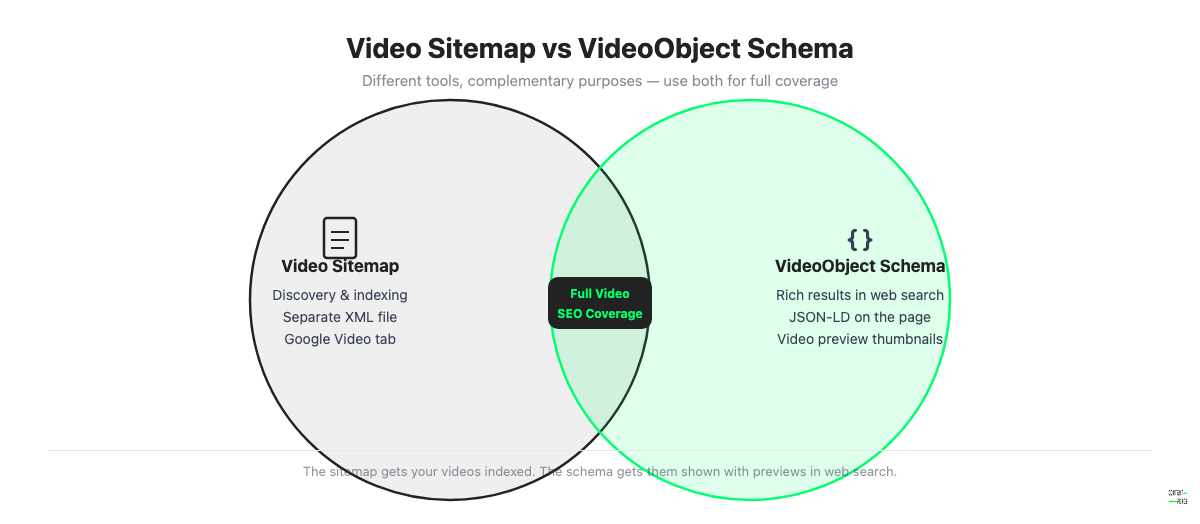
A video sitemap and VideoObject schema serve different purposes and work best when used together. Implementing both gives you full video SEO coverage.
A video sitemap tells Google where your videos are located across your site. It handles discovery and indexing: the sitemap is what gets your videos into the index in the first place.
VideoObject schema (JSON-LD markup added directly to a page) tells Google what each video is about. It enables video-specific rich results in web search, including a video preview thumbnail next to the page’s search result. Schema.org/VideoObject is the standard used here.
| Video Sitemap | VideoObject Schema | |
|---|---|---|
| Purpose | Discovery and indexing | Rich results in web search |
| Location | Separate XML file | JSON-LD on the video page |
| Effect | Videos appear in Google Video tab + carousels | Video thumbnail shown in web search results |
If you want full video SEO coverage, implement both. The sitemap gets your videos indexed; the schema gets them displaying with previews in standard web search results.
How to Test and Validate Your Video Sitemap
After submitting your sitemap, use Google Search Console’s Coverage report to check whether it was processed successfully. The Sitemaps section shows the number of URLs discovered and any errors Google encountered.
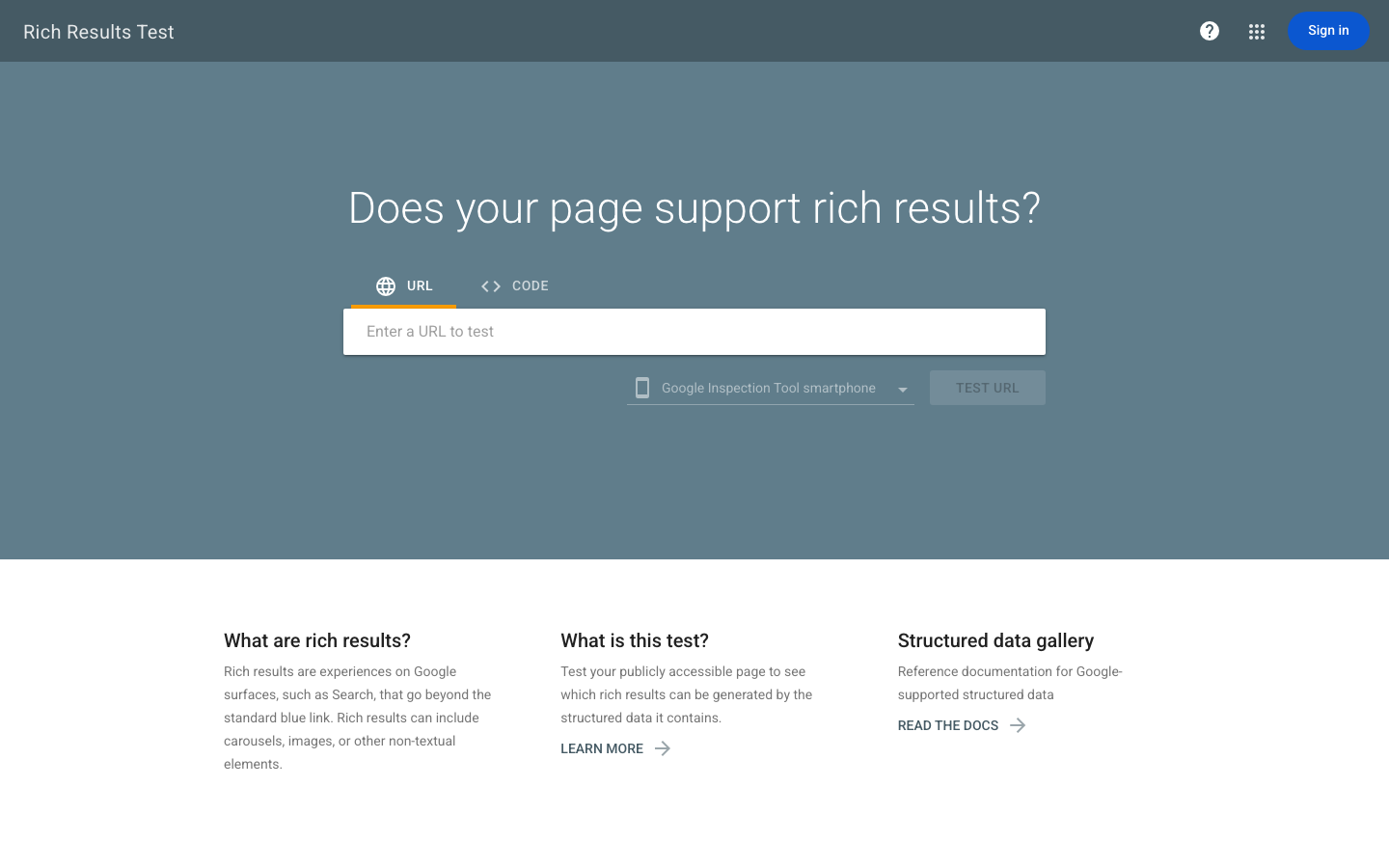
For page-level verification, run any URL containing a video through Google’s Rich Results Test. The tool shows whether Google detects VideoObject markup on that page. This is separate from the sitemap itself: it confirms the metadata on the page matches what your sitemap describes.
If the sitemap shows errors in Search Console, common causes include URLs blocked by robots.txt, thumbnail images returning 404s, or missing required tags. Fix the issues and resubmit.
Frequently Asked Questions
Do I need a video sitemap if I use YouTube?
No. YouTube-hosted videos are indexed independently by Google through YouTube itself. A video sitemap is for videos hosted on your own domain or through a third-party CDN where the video file URL is on your infrastructure. If you embed YouTube videos on your pages and want to associate them with your site, use VideoObject schema instead.
How many videos can I include in a video sitemap?
Each sitemap file supports up to 50,000 video entries and must stay under 50MB. If your library exceeds either limit, create multiple sitemap files and reference them from a sitemap index file.
Does a video sitemap guarantee my video appears in Google Search?
No. Submitting a video sitemap tells Google your videos exist and provides metadata, but Google decides whether to index and surface them. Content quality, page relevance, and technical accessibility all affect whether a video appears in results.
Can I add video sitemap tags to my existing XML sitemap?
Yes. Add the video namespace declaration to your existing urlset element and include video:video blocks inside the relevant url elements. There is no requirement to use a separate file.
What is mRSS and how does it differ from a video sitemap?
mRSS is an RSS extension that Google accepts as an alternative to the standard video sitemap format. It uses media:content and media:title tags instead of video:* tags. Both accomplish the same goal, informing Google about your video content. Most modern SEO setups use the standard video sitemap format; mRSS is mainly relevant for publishers already using media RSS feeds for other purposes.
How often should I update my video sitemap?
Update your video sitemap whenever you publish new videos or significantly change existing ones (new title, new thumbnail, new URL). Most SEO plugins handle this automatically. For manual sitemaps, schedule updates to coincide with your content publishing cadence.
