
Guide
How to Turn Off AI Overviews in Google Search

Google doesn't let you turn off AI Overviews in Google Search, but you can avoid them with the Web filter, which loads a results page of plain links. A custom search engine using udm=14 makes that view your default in a few minutes.
- Click Web in the row of tabs under the Google search bar, or pick it from More
- Add &udm=14 to a Google search address to load the Web filter directly
- Open chrome://settings/searchEngines and add a Site search entry with the udm=14 address
- Choose Make default in the three-dot menu next to the new Google (Web) entry
- Use Chrome for iOS on iPhone, or tap Web by hand after each search in Safari
- Install a desktop browser extension if you want to hide the AI box after the page loads
You can't switch AI Overviews off in Google Search, but you can stop seeing them. The closest thing to an off switch is Google's Web filter, which loads a results page of plain links, and a custom search engine in your browser can make that view your default in a few minutes.
This guide covers every method that works as of 20 October 2026 and what each one costs you: desktop Chrome and Firefox, Android, iPhone, the -ai operator and browser extensions. It also settles the AI Mode question, explains what happens to Gmail, and has a short section for site owners who want out from the publisher side.
Is There an Official Way to Turn Off AI Overviews?
No. Google's Search Help page for AI Overviews says the features "cannot be turned off" and calls AI Overviews a core Search feature, like knowledge panels. Nothing in your Google Account, in Search settings or in the Google app removes them. The page does give you one control: a thumbs-down icon under each overview, which leads to a "Report a problem" form, so Google hears about bad answers even if it won't let you opt out.
What the help page does document is the Web filter, which it says "displays only text-based links without features like AI Overviews". Every method below either reaches that view faster, hides the box after it loads or stops it from triggering on one query. Here's how they compare:
| Method | Works on | Lasts | Effort |
|---|---|---|---|
| Web filter, clicked by hand | Every browser and the Google app | One search | Low |
Custom search engine with udm=14 | Chrome, Edge, Firefox, Brave on desktop; Chrome and Firefox on mobile | Until you change it | One-time setup |
-ai search operator | Every browser and the Google app | One search | Low, but unreliable |
| Browser extension | Desktop browsers | Until Google changes its page | One-time install |
| Google Labs toggle | Where Labs is offered | Doesn't remove AI Overviews | Not worth the time |
How to Turn Off AI Overviews With the Web Filter
The Web filter is the only method Google documents, so start here. After you run a search, click Web in the row of tabs under the search bar. If you don't see it, open More and pick it from the list. Google reloads the page with plain blue links and no AI Overview.
On a phone, the Web tab sits in the same row below the search box. Swipe the row sideways if it isn't visible at first.
You can also reach the same view through the URL. Add &udm=14 to the end of a Google search address and the page loads straight into the Web filter. Google doesn't document that parameter, so treat it as a handy shortcut that could change without notice.
The catch, however, is that a Web-filtered page is stripped back to links only. Features such as knowledge panels, shopping modules and most map results are typically gone too, so for a search like "pizza near me" you may prefer the normal page. And the filter resets with the next search, which is why most people want the next method.
Article Summarizer: a TL;DR, 3 to 7 key points and concrete takeaways. Free, no signup.
Make the Web Filter Your Default Search
You can point your browser's address bar at the Web filter so that every search skips AI Overviews automatically. The trick is a custom search engine whose address includes udm=14, and it takes five short steps in Chrome. Once it's set, you type a query into the address bar and land on plain results, with no extra click and no AI box.
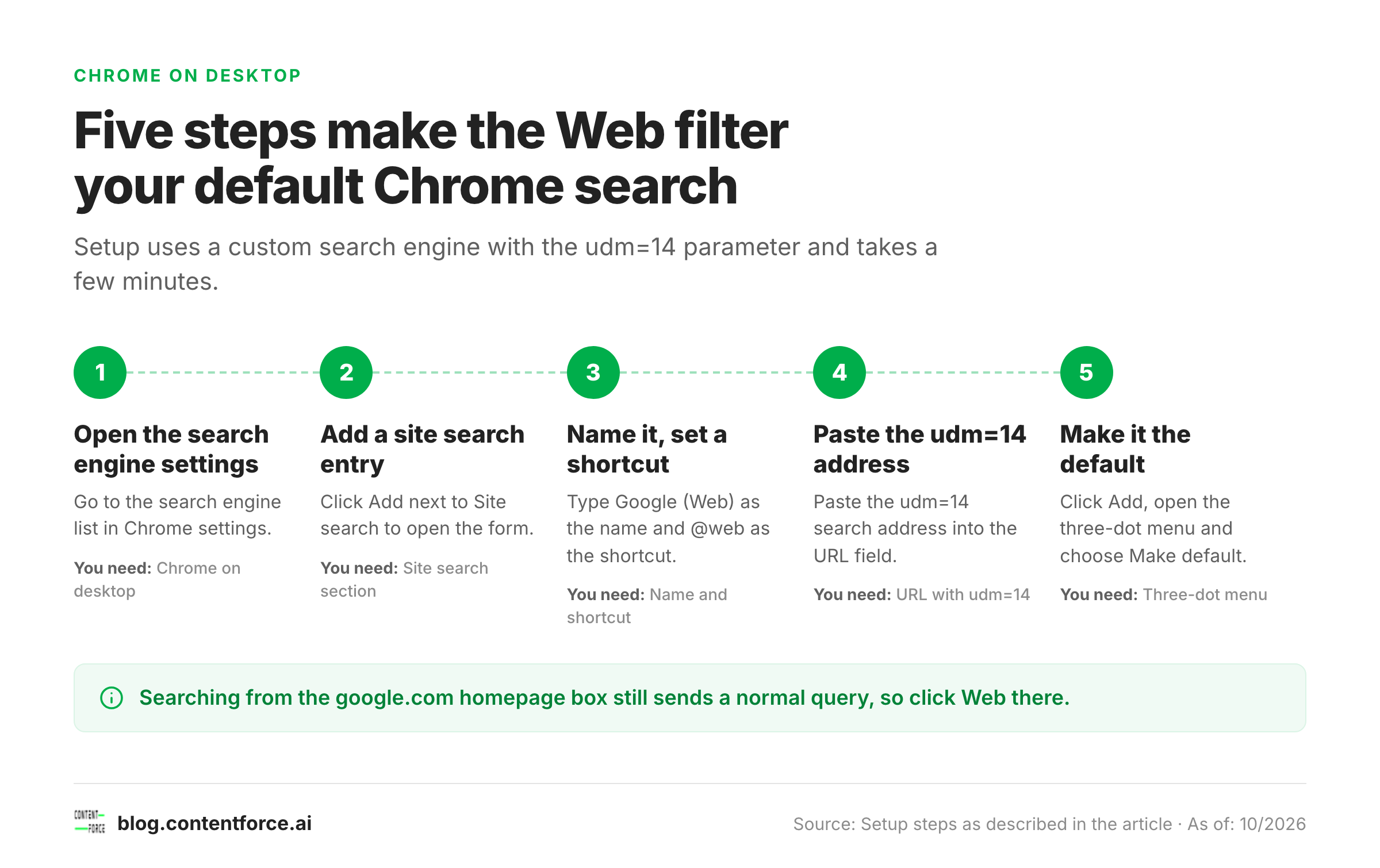
The steps below are for Chrome on desktop.
- Open
chrome://settings/searchEngines. - Click the Add button next to Site search.
- Type
Google (Web)as the name and@webas the shortcut. - Paste
{google:baseURL}search?udm=14&q=%sinto the URL field. - Click Add, then open the three-dot menu next to the new entry and choose Make default.
Edge, Brave and Firefox work the same way with their own search-engine settings, using this address in place of the Chrome placeholder:
https://www.google.com/search?udm=14&q=%sIn Firefox, the third-party site TenBlueLinks walks through adding the engine from the address bar.
One limit to know about: this changes what happens when you search from the address bar. Typing into the box on the google.com homepage still sends a normal query, so click Web after the results load in that case.
Turn Off AI Overviews on iPhone and Android
Mobile is honestly where most guides run out of answers, because the Google app has no setting for this. In the app, your options are the Web tab after each search and the -ai operator.
Android
In Chrome for Android, open Settings, then Search engine, and choose a Web-filter entry if one is listed. The TenBlueLinks page says you can add it by visiting the site once, searching Google, and then selecting Google Web in that menu. In Firefox for Android, open the search engine icon, go to the search settings and add a custom engine with the udm=14 address above.
iPhone
Safari doesn't offer a field for adding a custom search engine, so the desktop trick isn't available there. Three routes remain: use Chrome for iOS, which TenBlueLinks says supports the same Google Web setup from the menu in the bottom right corner; tap Web by hand after each search; or add -ai to your queries. Firefox for iOS lets you add a custom engine in Settings > Search.
Block AI Overviews With the -ai Search Trick
Typing -ai at the end of a query, for example best running shoes -ai, tells Google to leave out results that contain "ai". Many people find it keeps the AI Overview from appearing for that search, and it works in any browser or app because it's just query syntax.
It simply isn't reliable. Google doesn't document it as a way to hide AI Overviews, users report that it sometimes fails, and it also removes real pages that mention AI. Use it for the odd search when you don't want to switch tabs, but don't build a routine around it.
Hide AI Overviews With a Browser Extension
Several extensions for Chrome and other desktop browsers hide the AI box once the page loads. The Chrome Web Store lists one under the name "Turn off Google AI Overviews, Discussions and Ads", and others exist with similar names.
Extensions work differently from the Web filter. They hide the overview after Google has generated it, so your results page keeps its normal layout, with knowledge panels and shopping results intact. They also break pretty much whenever Google changes its page markup, but until the developer ships a fix you see the AI box again.
Before you install one, check three things:
- Permissions. An extension that reads Google results pages can see your searches. Look for a narrow "read and change data on google.com" permission, not access to every site.
- Developer and reviews. Prefer a named developer with a visible update history.
- Source. Install only from your browser's official store.
Does the Google Labs Toggle Turn Off AI Overviews?
Some guides tell you to open Google Labs and switch off an AI Overviews experiment. Treat that advice with caution, because it clearly overpromises. Google's help page says the features cannot be turned off, and Labs only controls experiments that are labeled as such. One 2026 guide reports that the Labs setting never removed AI Overviews from regular results and that Labs isn't offered in every country.
If you do open Labs, check it for a newer experiment called Web Guide. The same guide reports that it adds AI summaries to the Web tab, which would undo the one view that stays clean. If you see it enabled, turn it off.
Can You Turn Off AI Mode Too?
No. AI Mode is a separate tab and there's no setting that removes it. The good news is that the Web filter avoids it too: a Web-filtered results page shows only links, with no AI Overview and no AI Mode answer on it. If you reach AI Mode through the follow-up bar under an AI Overview, you're already in it, so close it and switch back to Web.
What About Gmail and Other Google AI Features?
Turning off AI Overviews in Search doesn't touch Gmail, because Gmail has its own controls, and Google's help page for smart features describes two separate switches: one for smart features inside Gmail, Chat and Meet, and one for Google Workspace smart features across other Google products. On a computer, open Gmail, go to Settings, then See all settings, and find the General tab. Clear the Smart features checkbox there, then open the Workspace smart features settings and turn off both toggles. Google notes that turning off the Gmail setting removes features such as inbox categories, Smart Compose and Smart Reply, and that changing one switch doesn't change the other.
Can Website Owners Opt Out of AI Overviews?
Website owners can opt out of AI Overviews even though searchers can't. Google added a Search generative AI setting to Search Console that lets a site exclude itself from AI Overviews, AI Mode and generative AI features in Discover. It's set per property and starts as Include, so you've got to choose Exclude yourself.
The control began with a group of UK site owners on 3 June 2026 and, according to Search Engine Journal, went global on 31 August 2026. Google's said it doesn't use the opt-out as a ranking signal. Opting out also means losing the visibility those features can bring, so check your AI impressions before you decide. If you'd rather have more of that visibility instead, our guides to AI Overviews, generative AI and SEO and answer engine optimization cover how to earn it, and AI visibility covers how to track it.
Why Won't Google Let You Switch AI Overviews Off?
Google's given no formal reason, but the product signals are plain. It treats AI Overviews as part of the core results page, and the data shows they change what people do on that page. A Pew Research Center study of 900 US adults, tracked during March 2025, found that people clicked a traditional result on 8% of visits with an AI summary, compared with 15% of visits without one. Only 1% of visits with a summary led to a click on a link inside it. Pew also found that browsing sessions ended on 26% of visits with a summary versus 16% without.
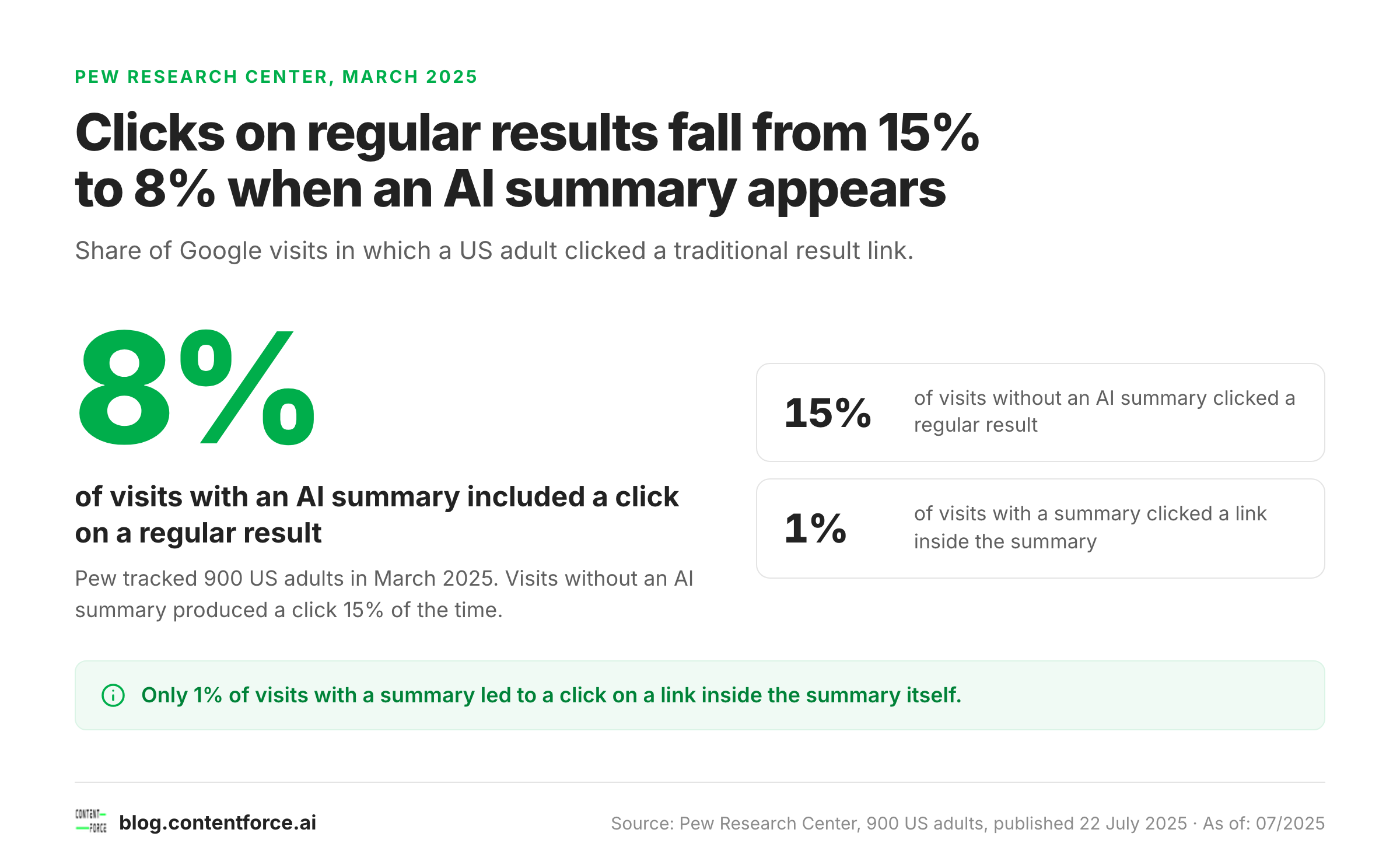
That's a really strong incentive for Google to keep the feature on and for publishers to want out. It also explains why every workaround here is a workaround: you're avoiding a feature, not configuring it.
Frequently Asked Questions
How do I switch back to normal Google search results?
Click Web under the search bar to see plain links, or set up the udm=14 custom search engine so every address-bar search opens that view. To get the full page back, click the All tab. If you changed your default search engine, open the search engine settings in your browser and make the standard Google entry the default again. One limit: Google's got no setting that makes Web the default on its own, so without the custom engine you click it on every search.
Is it possible to opt out of AI Overviews completely?
Regular users can't opt out of AI Overviews completely. Google says the features cannot be turned off. The Web filter and a custom search engine come closest, because they load a results page without the overview.
Does turning off AI Overviews also turn off AI Mode?
No, AI Mode's separate and has no off setting. A Web-filtered page contains neither, so the Web filter's the one method that covers both.
Will these methods stop working?
Yes, these methods can stop working, because Google can break these workarounds with any Search update. The Web filter is documented by Google, so it's the safest. The udm=14 address, the -ai operator and browser extensions aren't documented, and any of them can break when Google changes Search.